
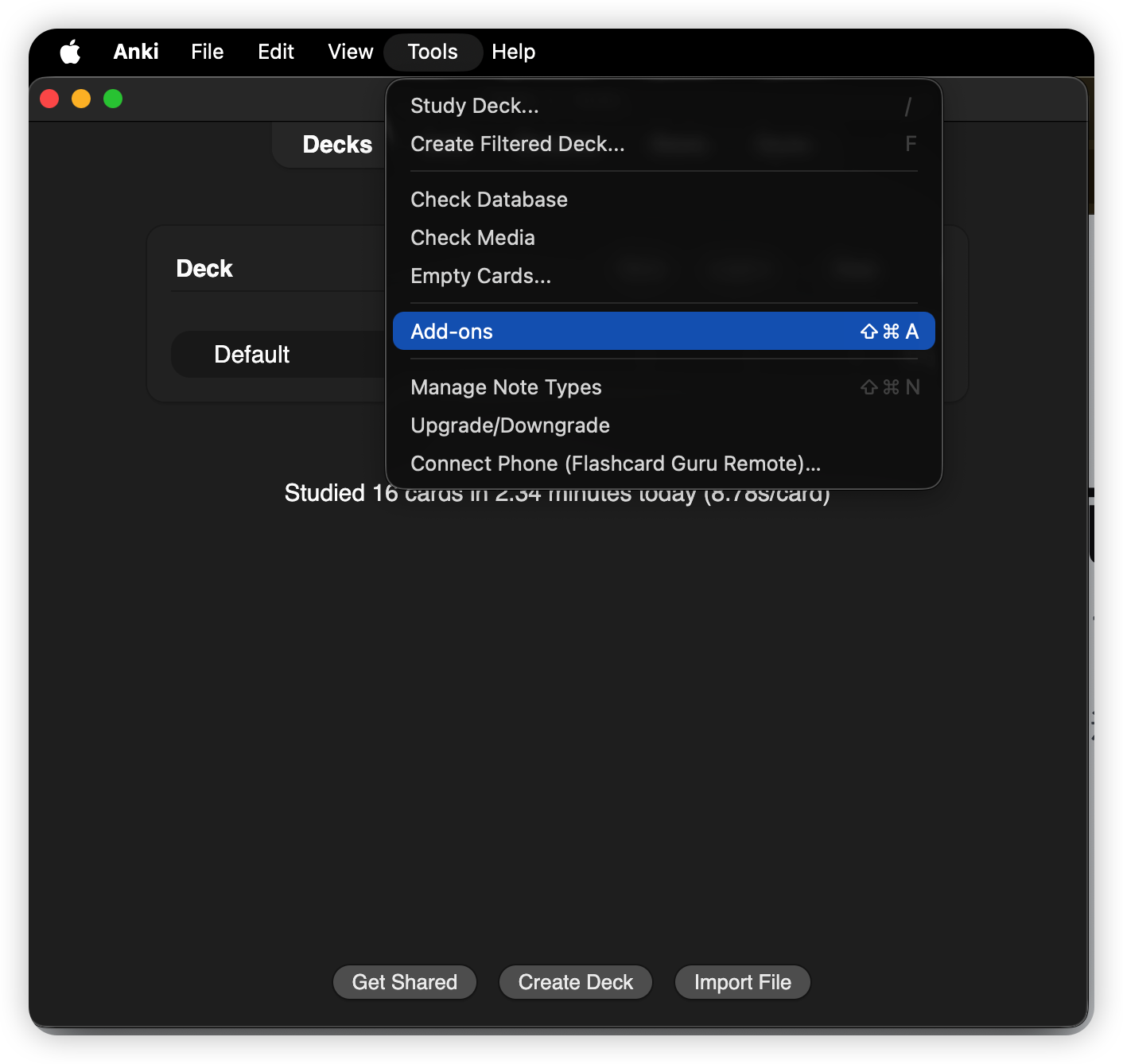
On your Mac, open Anki and choose Tools → Add-ons.
Pair your iPhone with Anki Desktop in 10 seconds via QR code, then drive Show Answer / Again / Hard / Good / Easy from your couch, treadmill, or wherever you're studying. Plug in a cheap 8BitDo controller and it works through your phone — even the models AnkiMobile refuses to pair with.
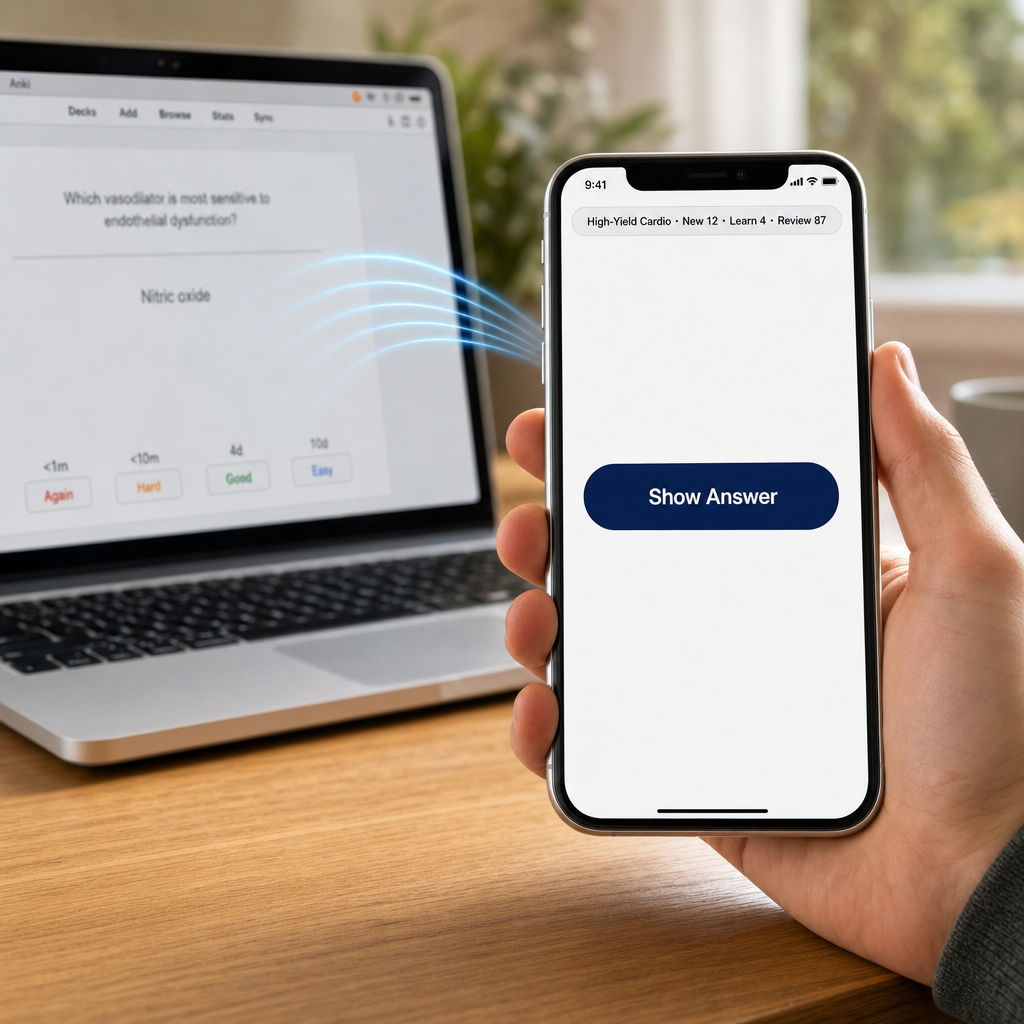
Tools → Add-ons → Get Add-ons… and paste this code:
Tools → Connect Phone (Flashcard Guru Remote)… — a QR code appears.Settings → Anki Remote → Pair with Mac — scan the QR.Follow the same flow shown in these screenshots: install the add-on in Anki Desktop, restart Anki, open the QR pairing window, then scan it from Guru.
On your Mac, open Anki and choose Tools → Add-ons.
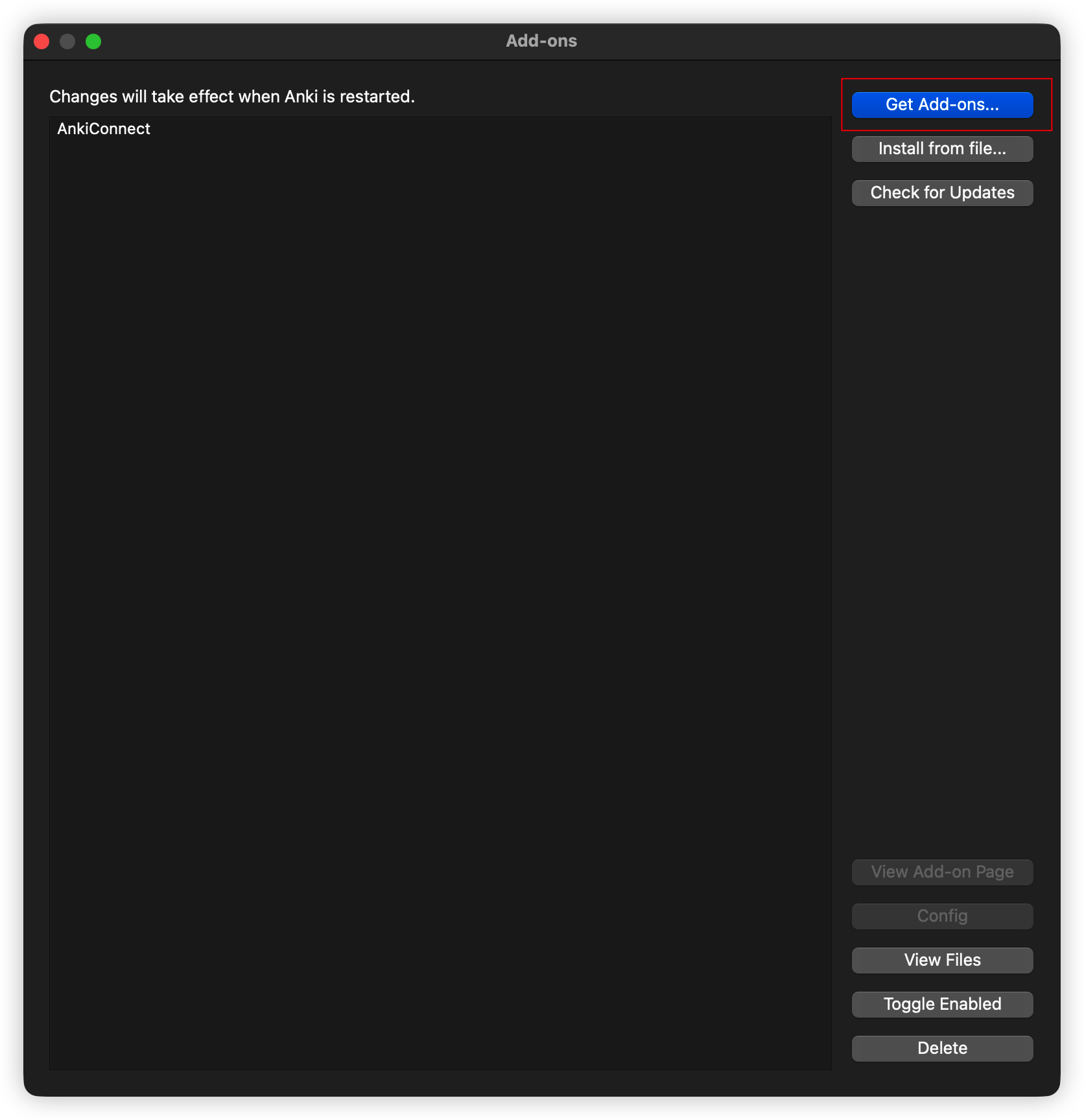
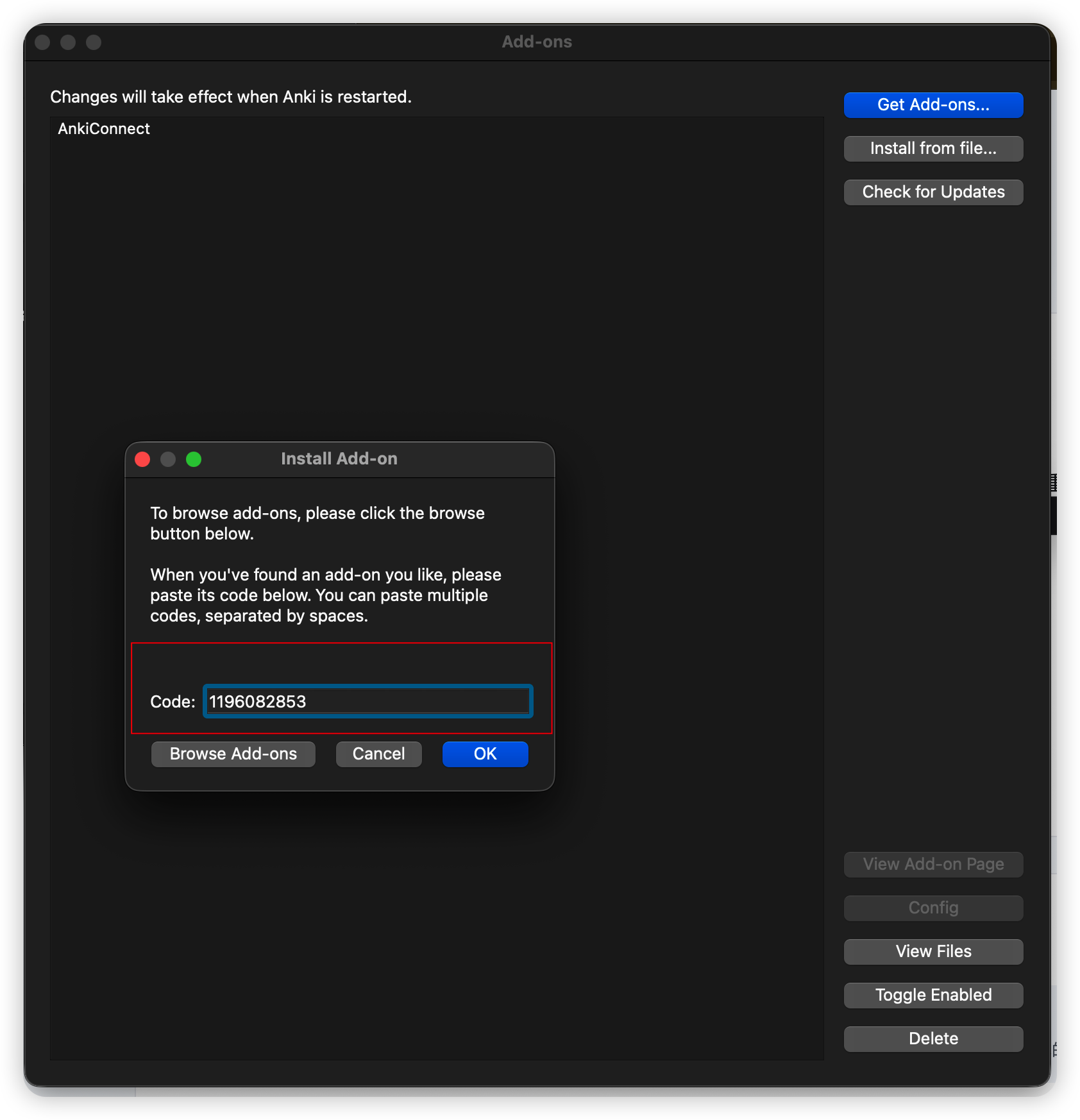
Click Get Add-ons…, paste 1196082853, then confirm.
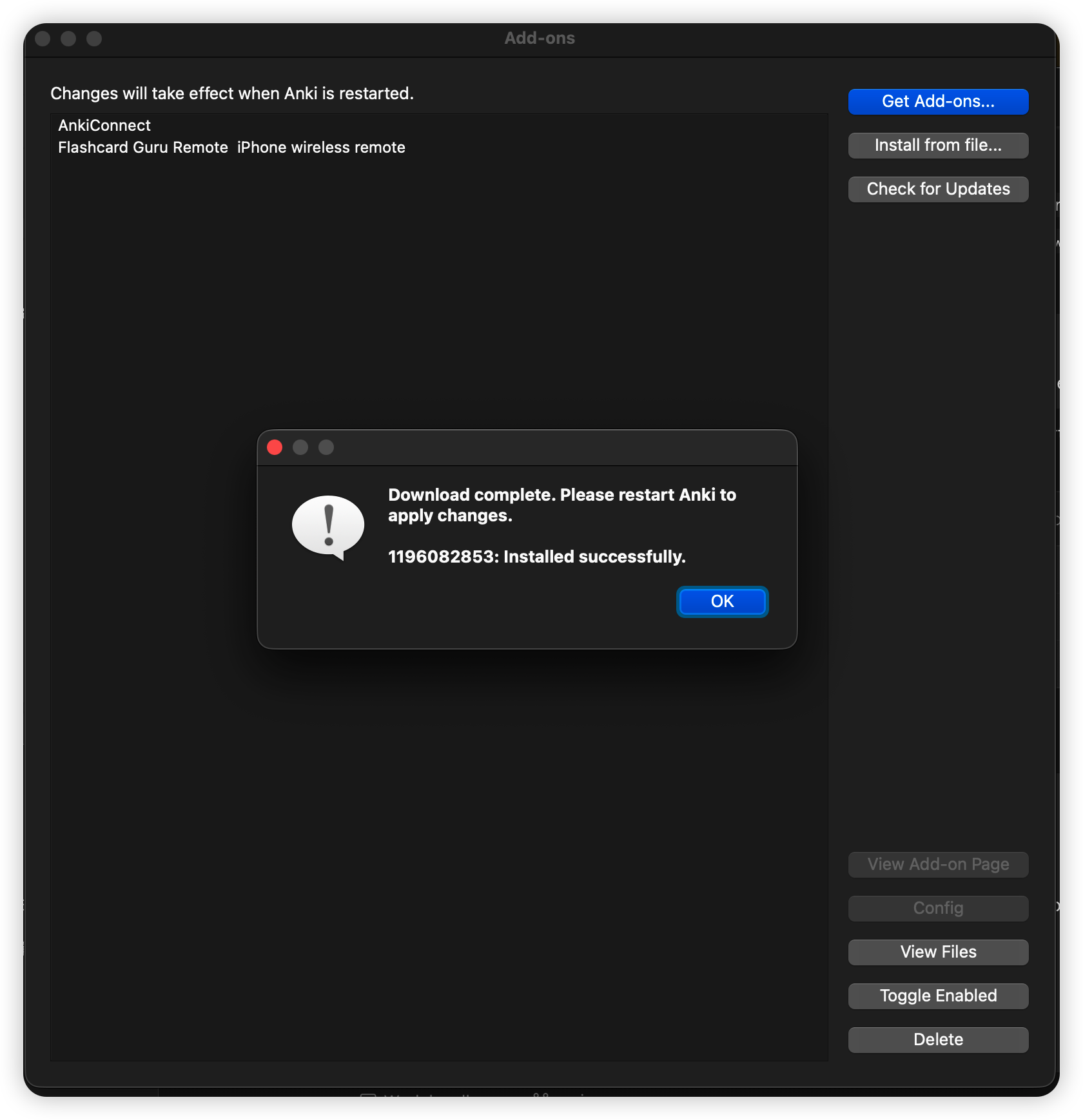
After the install succeeds, restart Anki so Flashcard Guru Remote appears in the Tools menu.
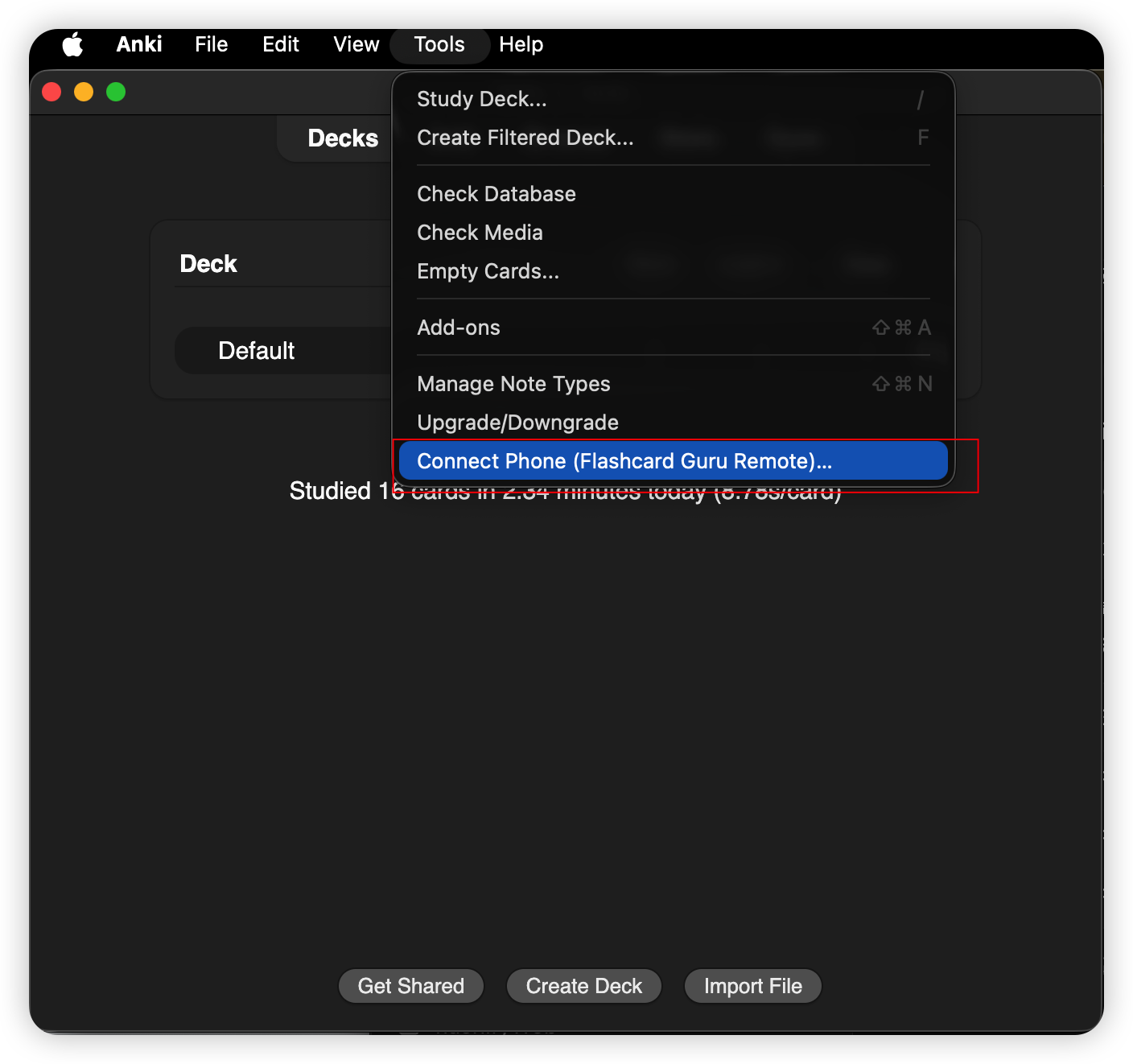
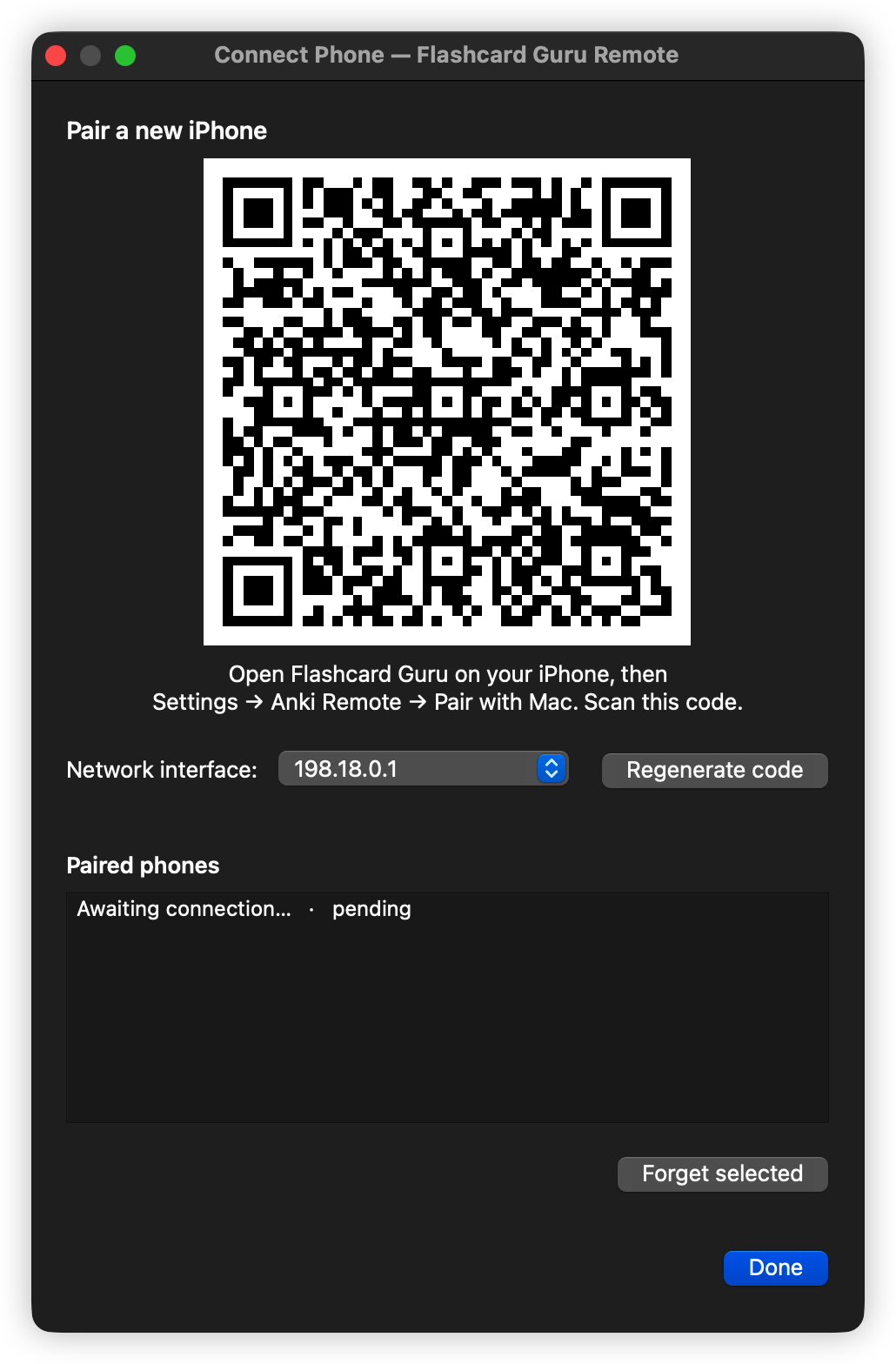
Open Anki again and choose Tools → Connect Phone (Flashcard Guru Remote)….
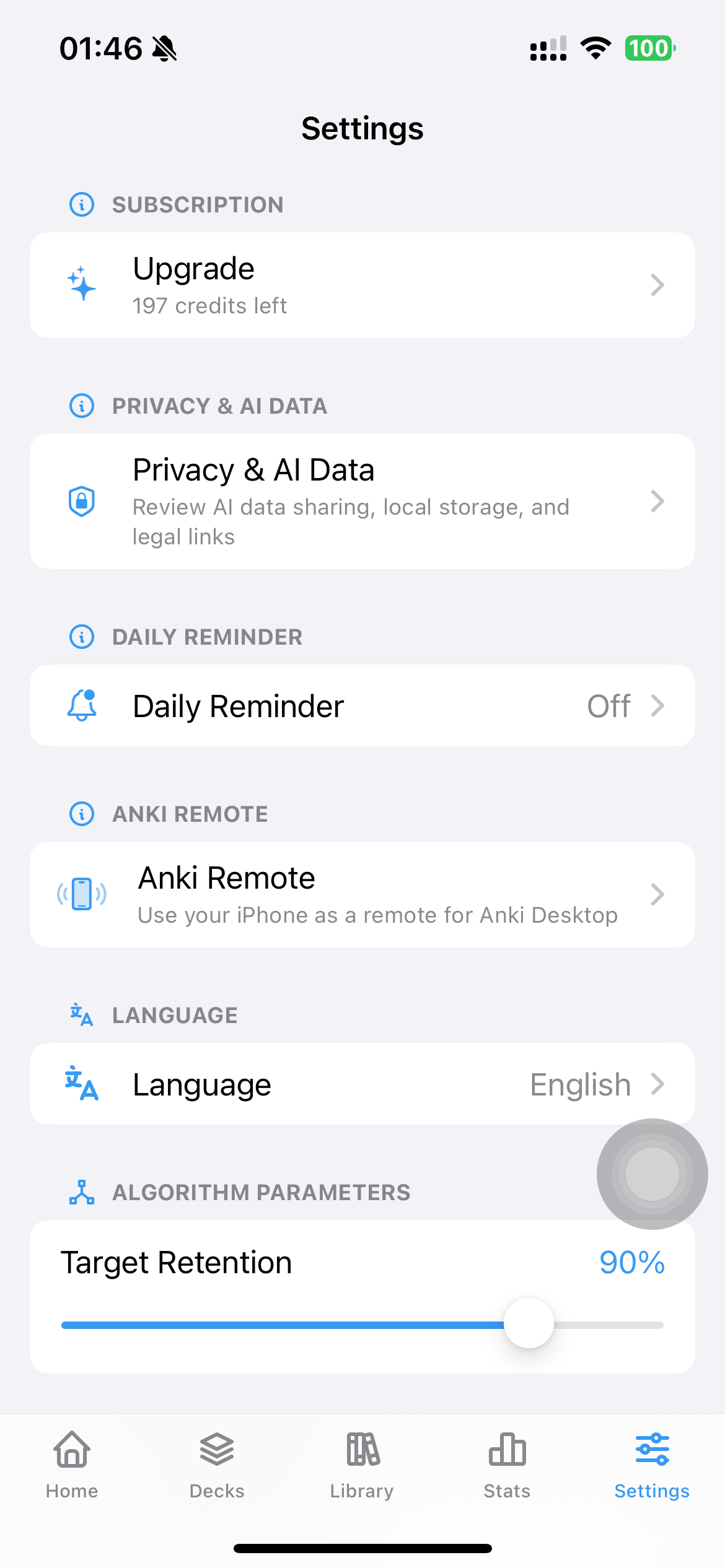
In Guru, go to Settings → Anki Remote.
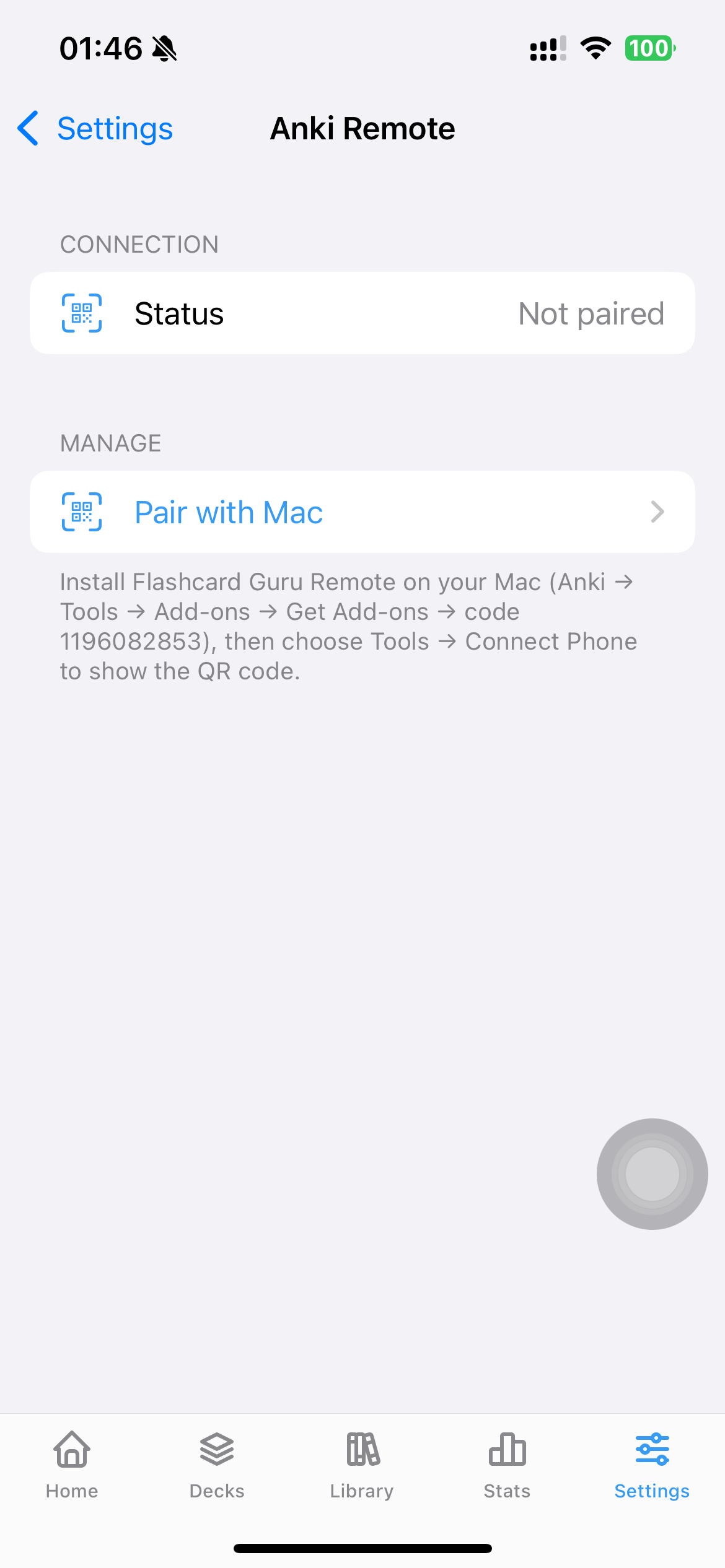
Tap Pair with Mac, scan the QR code on your Mac, and the connection is ready.
Plug a controller into your iPhone (USB-C or Bluetooth) and Guru forwards the buttons to Anki Desktop:
A → Good · B → Again · X → Hard · Y → EasyR1 → Show Answer · L1 → Replay · Options → Undo1 / 2 / 3 / 4 → Again / Hard / Good / EasySpace → Show Answer · R → Replay · Z or U → UndoThe keyboard route is the trick that makes cheap 8BitDo controllers work — those small models don't expose Apple's GCExtendedGamepad profile, so AnkiMobile rejects them. Guru listens to GCKeyboard too, which is what 8BitDo's "Keyboard Mode" sends.
Tools → Add-ons shows the version; Check for Updates pulls newer ones from AnkiWeb.